
Solid Capture has a wonderful feature called Scrolling Window Capture. It allows you to capture an entire web page as a single image. Unfortunately, this feature is only available in Internet Explorer and not Firefox.
So what are our customers who prefer using Firefox over IE left to do (besides use IE)? One good workaround we've found is using IE Tab to view Internet Explorer inside of a tab in Firefox. You can then use Solid Capture to take a screen shot of the IE tab in Firefox. When you're done taking the screen shot you can change the tab back to Firefox and keep working.
At the time of this writing the latest version of the add-on that works with Firefox 2 is 1.3.3.20070528 (try saying that five times fast). You can download it from here.
The product is a little short on instructions, but it isn't hard to use. When you're at a page that you want to view in IE, click the IE Tab button on your toolbar to switch to IE. When you want to switch the tab back, click the IE Tab button again.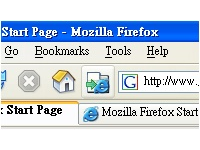
(The IE Tab button in Firefox)
It may install itself automatically for people, but when we tested it we didn't see any extra buttons appear on our navigation toolbar like it does in the above image.
We were able to add it by going into Firefox | View | Toolbars | Customize. Click and drag the IE Tab button to your toolbar of choice to place the button. You can click the IE Tab button whenever you need to open a page in Firefox in Internet Explorer.
Tuesday, March 18, 2008
Scrolling Window Capture in Firefox using Solid Capture


Capturing Screen Shots of Video using VLC Media Player
Occasionally customers will contact us asking how to take screen shots from moments in their favorite DVDs.
Although Solid Capture Screen Capture is very good for capturing screen shots of most Windows applications, one thing it doesn't do well is capture still images of video. This is due to the fact that it does not capture DirectX output.
We've found that using VLC media player works well for this application. Instructions on how to take screen shots of video in the program can be found here.
Monday, March 3, 2008
PDF Timesavers: Convert Multiple PDF files to DOC using Solid Converter PDF
Normally in Solid Converter PDF you'll use a wizard menu to convert PDF files to DOC. As you progress through this wizard many conversion options will be made available to you. This is useful if you convert PDF files infrequently, as it reminds you what options are available and provides an idea of what they do.
The downside to this is that if you have to convert several files (5, 10 or even more) you have to click through the wizard for each and every PDF file. This obviously isn't optimal.
Monday, February 25, 2008
Adobe Acrobat vs. Solid PDF Creator Plus: Password Protect an Existing PDF File
This comparison focuses on encrypting and password protecting an existing PDF file using Solid PDF Creator Plus and Adobe Acrobat 8 Professional.
Both applications are more than up to the task. However, using the default settings of Adobe Acrobat require that you click through many popup windows to accomplish your goal.
Thursday, February 21, 2008
Adobe Acrobat vs. Solid PDF Creator Plus: Extracting Pages from a PDF File
This comparison focuses on extracting pages 1-10 and 20-30 from a PDF file and placing it in a new PDF file.
Why would you want to do this? You might have a price list or catalog that you want to customize for a customer. Or you might have some documentation that is rather large and you only need to refer to certain sections of it. Whatever your reason you can use both Solid PDF Creator Plus and Adobe Acrobat to accomplish this goal.
Tuesday, February 19, 2008
Adobe Acrobat vs. Solid PDF Creator Plus: Combining Two PDF Files
This comparison focuses on combining two PDF files using either Adobe Acrobat or Solid PDF Creator Plus. The steps below could just as easily apply to combining five or ten PDF files, as the process is the same for both products.
Friday, February 15, 2008
CutePDF Professional vs. Solid PDF Creator Plus: Deleting a Page in a PDF File
This comparison focuses on deleting an individual page from a PDF file using CutePDF Professional and Solid PDF Creator Plus. If you haven't yet read the first post in this series, we recommend that you do so to see how Solid PDF Creator Plus performs. We also have a complete feature comparison of the free version of CutePDF verses Solid PDF Creator and Solid PDF Creator Plus which is well worth reading.

 Follow us on Twitter