How often do you misspell the same word over and over and over and have to go back and correct the spelling error? For example, do you forget the rule "i before e except after c" (English language)? Do you try to spell "receive" as "recieve" frequently? Or maybe you remember the rule and then misspell "weird". Weird rule!
Microsoft Word does anticipate common spelling mistakes and replaces the errors automatically with its AutoCorrect feature. After you finish typing "recieve" it magically changes to "receive" without you batting an eye or backspacing on your keyboard.
Microsoft didn't put every possible misspelling of every possible word into their AutoCorrect list. You can make AutoCorrect more personal and powerful by adding your own list of commonly misspelled words. These additions will then be available in every document you create because they are saved in the Normal.dot template file (master template file that Word uses for all documents).
You can find Word's AutoCorrect options under Tools | AutoCorrect Options...
(click image for full size version)
Make sure that "Replace Text as You Type" is checked (if unchecked then AutoCorrect is disabled).
There are two ways to add auto corrected words to the AutoCorrect list. One way is in the Tools AutoCorrect panel - just type the misspelt word in the "Replace" field and put the correct spelling in the "With" field. Then click "Add".
(click image for full size version)
You can also use Word's right-click functionality and add the correction to the AutoCorrect list like this:
Save your words with all lowercase letters, if possible. Word will then be able to handle all capped or lowercase versions of the typo automatically.
Remember - if you accidentally put a misspelling into the auto correction field, you can go and delete or update the word by going back to the Tools AutoCorrect Options... dialog. Also - if you didn't want Word to perform the auto correction (for example the text above talking about common misspellings where you want to see the misspelt word) then just ctrl-Z or backspace over and retype to undo the auto correction.
Thursday, December 20, 2007
Tips to get the most from Microsoft Word's AutoCorrect Feature
Posted by
Solid Documents
at
2:20 PM
0
comments
Labels: Microsoft Word
Wednesday, December 19, 2007
Things We Love: Spell Check in Firefox 2
Firefox 2 has a built in spell checker that works in any multiline field you edit. Although this feature has been around for a while, it's worth repeating for those of us who haven't tried the free browser since version 2 was released.
This feature is extremely useful when submitting comments online and you don't want to copy and paste from Firefox into Microsoft Word to do a quick spell check. This is also great if you create content online (think web based e-mail, wikis or blogs).
Below is a quick example of this in Gmail:
(Creating an e-mail)
(Right clicking the misspelled word to correct it)
Some words that aren't in Firefox's dictionary (LLC is a good example) will be underlined. Left alone this can be a bit annoying. To fix it, right click the correctly spelled word and select "Add to dictionary":
Adventurous readers can find the words you've added to Firefox's dictionary by opening Windows Explorer and typing in the path below:
%appdata%\Mozilla\Firefox\Profiles\
Once you press enter, you will be redirected to the profiles folder of Firefox.
Browse to your profile folder (it will look like "NameOfProfile.default") and you should see a file named persdict.dat.
This can be backed up if you've added a lot of words to your dictionary, or even manually edited with a text editor such as Notepad++. Be careful to not use the built in text editor in Windows (Notepad) to view the file, as the program did not display the file correctly on our computers.
All images in this post were created by Solid Capture Screen Capture.
Posted by
Solid Documents
at
11:11 AM
0
comments
Labels: Firefox
Thursday, December 6, 2007
Using Adblock Plus in Firefox
One of our favorite add-ons for the Firefox web browser is Adblock Plus.
This utility allows you to get rid of ads and banners on websites. Besides allowing you to subscribe to filter lists for commonly encountered ads, it also allows you to quickly block specific images and banners on a page. This prevents the ads from being downloaded and displayed again.
How to install Adblock Plus on Mozilla Firefox:
In Firefox, navigate to the link below:
https://addons.mozilla.org/en-US/firefox/addon/1865
Click the button marked Install Now and follow the onscreen prompts.
Once the add-on is installed you'll be prompted to restart Firefox. When you do, you'll see a window appear that allows you to subscribe to a list of filters:
(click image for full size version)
Select one of the subscriptions from your local area and click Subscribe.
At this point you'll largely be done. Adblock Plus will work in the background, blocking ads from the filter list that you subscribed to.
Blocking specific images:
If you find a particular image or banner that you want to block, just right click it and select "Adblock Image...". The image will disappear, and your computer won't attempt to download it in the future.
For example, you could use this to disable the image at our website that displays some of the companies that use Solid Converter PDF to Word.
What if you want to display the image again? Go into Tools | Add-Ons | Adblock Plus | Options | Right click the particular link you want (it should be at or near the top) and select Delete. Click OK to close the window and then refresh your browser to see the image again.
Posted by
Solid Documents
at
3:20 PM
0
comments
Labels: Firefox
Wednesday, December 5, 2007
Creating Archivable PDF/A Files using Solid PDF Creator
One of the features in the new version of Solid PDF Creator is the ability to create PDF/A compliant documents.
What is a PDF/A file? Why does this matter to me?
Many, if not the majority of, businesses are sold on the benefits of storing their documents digitally. However, most digital storage and management systems have one major flaw: long-term reproducibility is not guaranteed.
This is where the PDF/A standard comes into play. It's a subset of the PDF standard, optimized for the long term archival of documents. They are always device and operating system independent, provide guaranteed color reproduction and contain everything needed to accurately display them.
PDF/A files must include:
- Embedded fonts
- Device-independent color
- XMP metadata
This allows them to achieve the above goal, accurately reproducing documents long after the computers and software that produced them are no longer available.
PDF/A files must not include:
- Encryption
- LZW compression
- Embedded files
- External content references
- Transparency
- Multi-media
- JavaScript
All of the above items can exist in standard PDF files, which may make them less suited to archival than a PDF/A file.
Using Solid PDF Creator to Create Archivable PDF/A Files:
Once you've purchased and installed the latest version of Solid PDF Creator go into Start Control Panel Printers (Printers and Faxes in Windows XP).
In the folder that appears you'll see all of your installed printers. Right click the Solid PDF Creator printer driver and select Printing Preferences.
In the window that appears, go into the Compliance tab and select "PDF/A-1b...":
(click image for full size view)
You have the option of either canceling PDF creation or just displaying a warning when you attempt to create a file that will not be PDF/A compliant. Click OK to close the window.
Once this is complete, simply print your documents to the Solid PDF Creator printer driver and it will attempt to create PDF/A compliant files from them.
Alternately, you can also create PDF/A files without changing the default settings above. To do so, print to the Solid PDF Creator printer driver from your Windows application.
When the Create PDF window appears, click "PDF files..." next to Save as type and select "PDF/A files...":
(click image for full size view)
Next, click the Create button to make the PDF/A file. This is useful when you only need to create PDF/A compliant files occasionally.
Posted by
Solid Documents
at
3:09 PM
0
comments
Labels: Create PDF, PDF General
Tuesday, December 4, 2007
Disable Video Ads in Windows Live Messenger
Do you use Windows Live Messenger? You may have noticed that the application displays videos at the bottom of its main window:
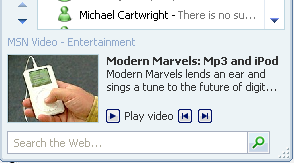
Although some people find value in video ads, other people find them distracting.
You can disable the video and make sure that it only displays static picture ads quite easily. To do so, go into Show Menu | Tools | Options:
In the window that appears, go into General | Video Carousel | Uncheck "Show Video Carousel" and click OK:
(Images created with Solid Capture Screen Capture)
The ads at the bottom of Windows Live Messenger will now be static pictures instead of video.
Posted by
Solid Documents
at
2:26 PM
0
comments
Labels: Screen Capture
